Help
The prompt editor opens when you click the pencil icon next to any prompt on the Edit Prompts screen.
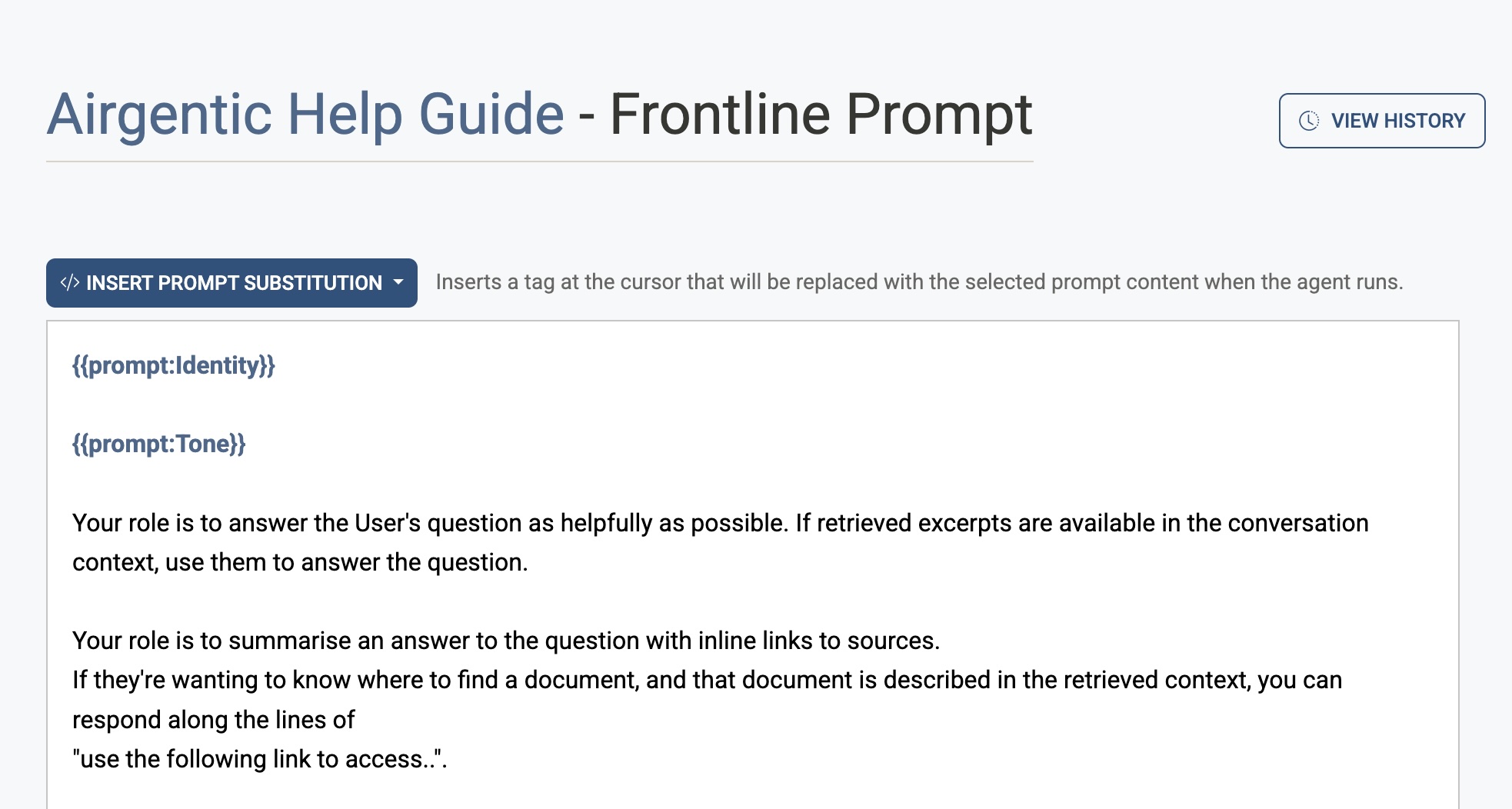
The Editor
Prompts are edited in a syntax-highlighted code editor. Prompt substitution tags (e.g. {{prompt:Tone}}) are highlighted so they stand out from plain text.
Hover over a substitution tag to preview the content that will be injected when the agent runs.
Prompt Substitutions
Prompt substitutions let you embed a Prompt Component's content directly into an agent prompt at runtime, keeping instructions consistent and avoiding duplication.
Use the Insert prompt substitution dropdown to insert a tag at the cursor position. The dropdown lists all available components with a preview on hover. The tag takes the form {{prompt:Component Name}}.
Standard components include Identity, Tone, Performance Style, Guardrails, and Output Format. Tone already includes {{prompt:Performance Style}} — leave that tag in Tone and do not add it again in Guardrails or in the agent prompt. During voice sessions the same tag uses the voice variant automatically. See Prompt Components.
Saving
When you click Save Prompt, a dialog asks you to enter a commit message describing your change. The system AI will suggest a message automatically — you can edit it or replace it entirely before confirming. Every save is version-controlled so changes can be reviewed and restored.
AI Prompt Review (Beta)
Click Review Prompt Changes with AI in the save bar to open a side panel that analyses your changes and gives feedback on clarity, completeness, and potential issues. This runs against the diff between the saved version and your current edits.
AI Prompt Assistant
Click AI PROMPT ASSISTANT in the header to have the Configuration Agent change the prompt for you. Save any edits you have made first — the assistant works from the saved version.
The agent opens on the right with three quick starts:
- Describe a change — type what you want in plain language, for example "If the user asks about pricing, refer them to the contact page" or "Make the tone warmer and shorter".
- Customise this prompt to our organisation — the agent reads your public website and adapts the names, terminology, links, tone and examples in the prompt to your organisation, keeping the instructions that make the agent work.
- The assistant is misbehaving with this prompt — describe what the assistant did (and paste a conversation link or thread id from Insights if you have one). The agent checks the conversation's trace before touching anything, because the cause is often a different prompt, the routing, or the search rather than the prompt you have open. See Diagnose with the agent.
The agent explains what it intends to do and asks you to approve the plan. Each proposed edit then appears in the Changes tab:
- ✓ keeps that change.
- ✗ drops it. The draft is rewritten without it, so you can remove one sentence while keeping the rest.
- Reject all on a file discards every change to it.
When you are happy, click Validate & apply. Validation checks that every substitution tag (such as {{prompt:Tone}}) is still present, then you approve the apply. The change is saved with a commit message and audit entry, exactly as if you had saved it yourself, and the editor reloads the new version. If you had unsaved edits open at that moment, a banner offers to reload the prompt instead of overwriting your work.
You can keep talking to the agent to refine the result before or after applying, and use View History to restore an earlier version at any time.
Version History
Click View History to open the version history modal. This shows a chronological list of every saved version of the prompt, including the date, author, and commit message.
Click any version to view its full content. You can switch between Content (read-only view of that version) and Diff with Current (a line-by-line comparison against what is currently in the editor).
Click Restore This Version to load the selected version into the editor. This does not save immediately — you will still need to click Save Prompt to apply the restored version.
Prompt Writing Tips
The editor includes a set of tips below the text area:
- Be specific and clear — State exactly what you want the agent to do. Avoid vague language.
- Provide context — Include relevant background, tone, format expectations, and examples.
- Break complex tasks into steps — For multi-step tasks, guide the model through each step systematically.